
The Agendis 62 login page displays an error, the form spins endlessly, or the password is rejected without explanation. This type of blockage regularly affects SDIS 62 agents trying to access their duty and on-call schedules. Most of the time, the issue does not come from the server but from a detail on the browser side or the identifier side that can be corrected by the user in a few minutes.
Agendis 62 login issue related to browser cache and cookies
Have you ever noticed that a site works perfectly on a colleague’s phone but not on your computer? The browser keeps temporary files (the cache) and small identification files (cookies) in memory. When Agendis 62 is updated or your previous session did not close properly, an old session token stored in the cookies blocks the new connection.
Specifically, the server receives outdated information and denies access. The most effective reflex is to clear the browser’s cache and cookies, then completely close the window before attempting to log in again. On Chrome, the shortcut Ctrl + Shift + Delete opens the cleanup panel directly. On Firefox, the process is the same.
Another common pitfall: using a bookmark saved months ago. If the URL of the Agendis portal has changed in the meantime, the bookmark redirects to an outdated address. Type the complete official address into the browser’s address bar instead of clicking on an old shortcut. This simple habit avoids a significant portion of the connection errors reported to the IT services of the SDIS.
To delve deeper into this topic, a guide detailing the solutions for Agendis 62 connection issues reviews each diagnostic step.

8-character ID on Agendis: a common format error
The Agendis login page requires a long ID formatted to 8 characters. If your actual ID is 9999, you need to enter 00009999. Omitting the leading zeros will systematically result in an authentication denial, even if the password is correct.
This format exists because the SDIS database identifies each agent by a fixed-length key. The Agendis portal of SDIS 22 even displays an explicit warning on its login page: “Attention!! Identification with the 8-character ID.” SDIS 62 uses the same logic.
Ensure that your ID consists of exactly 8 digits, including leading zeros. If you do not know your complete ID, contact your local administrator instead of making multiple attempts, as several successive failures can temporarily lock the account.
Password copied from a SMS or email: the invisible space trap
During a first login or a reset, the temporary password often arrives via SMS or email. The natural reflex is to copy and paste it into the input field. The problem is that an invisible space can sneak in at the beginning or end of the password during the copying process.
This extra space is undetectable to the naked eye. The input field displays dots or asterisks, so nothing indicates the extra character. The server then compares a 9-character password with an expected 8-character password and denies access.
The workaround is simple: after pasting the password, place the cursor at the very beginning of the field and check that there is no position before the first visible character. Do the same at the end. On mobile, long-press the field to display the plain text if the option exists, then remove any stray spaces. This advice applies to all SDIS applications that send temporary codes, not just Agendis.
Agendis 62 login on mobile: browser or dedicated app
Some SDIS offer a dedicated mobile app to access duty calendars, developed by Astillia (the publisher of Agendis). When it exists, this app manages sessions better than the mobile browser, particularly because it does not suffer from the cache issues mentioned earlier.
If you are using a mobile browser (Safari, Chrome), the same precautions apply, with an additional difficulty: mobile browsers retain sessions longer than their desktop counterparts. Closing the tab is not always sufficient. Sometimes, you need to completely close the browser app and then relaunch it.
Here are the reflexes to adopt on mobile before contacting support:
- Check that your network connection (Wi-Fi or mobile data) is stable, as an unstable connection can interrupt the authentication exchange midway.
- Delete site data for the Agendis URL in the browser settings, which is a targeted cleanup without deleting all your other cookies.
- Try private browsing: it opens a fresh session, without cache or pre-existing cookies, and allows you to check if the problem comes from locally stored data.
When the problem is not on your end: check the status of the Agendis server
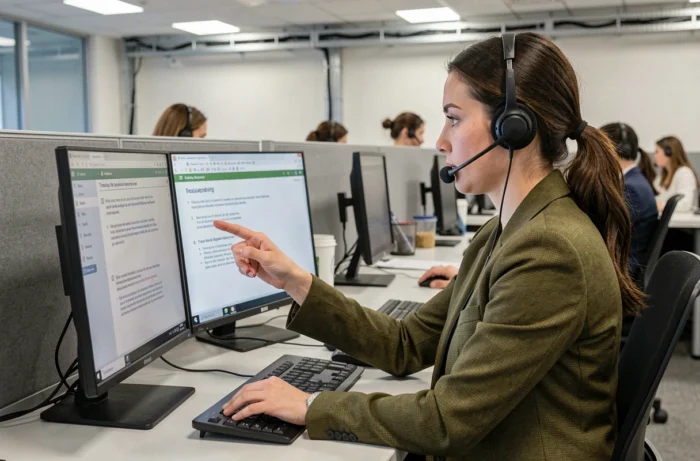
All the previous checks assume that the Agendis server is functioning normally. In some cases, the portal is undergoing scheduled maintenance or experiencing a technical incident on the hosting side. A blank page or a “503 Service Unavailable” message indicates a server problem, not a password issue.
To distinguish a local problem from a server problem, test the connection from another device (a colleague’s phone, a computer at the rescue center). If no one can connect, the server is likely unavailable. Wait a few minutes and try again.
If the blockage persists beyond an hour, contact the IT department of SDIS 62 directly. Provide them with the exact error message displayed on the screen, the time of the attempt, and the browser used. This information speeds up diagnosis and avoids unnecessary back-and-forth.
The vast majority of blockages on Agendis 62 can be resolved without support intervention, provided you proceed by elimination: ID format, browser cleanup, verification of the pasted password, then testing on another device. Keeping these four steps in mind transforms a frustrating blockage into a routine check that rarely takes more than five minutes.